Atlassian Rovo Studio Tutorial: Build Your First No-Code AI Agent in 10 Minutes
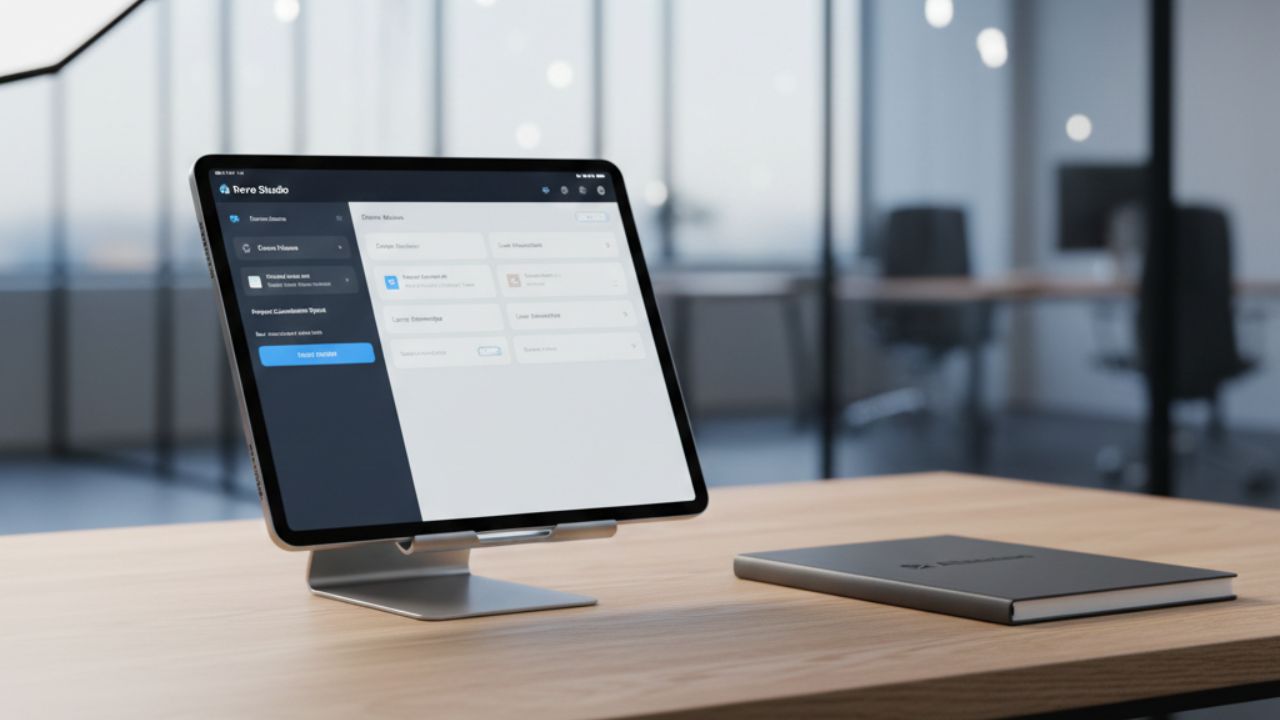
- No-Code Simplicity: Create custom, high-functioning AI agents using the Rovo Studio interface without writing a single line of code.
- Instant Productivity: Automate heavily repetitive tasks, such as generating meeting summaries and initiating Jira ticket creation directly from Confluence.
- Deep Data Integration: Securely connect your specialized agents to diverse knowledge sources across Atlassian and authorized third-party applications.
- Strategic Context: Leverage the Atlassian Teamwork Graph to ensure your agents deeply understand your organization's specific technical relationships and hierarchies.
Building a highly specialized enterprise AI assistant no longer requires an advanced degree in computer science or a dedicated engineering sprint. This comprehensive Atlassian Rovo Studio Tutorial provides a clear, step-by-step roadmap to deploying your very first custom agent. This deep dive serves as a practical implementation chapter in our extensive pillar guide on Atlassian Intelligence and Agentic Workflows.
By mastering the fundamentals of Rovo Studio, you can actively transform your organization's static documentation into dynamic participants within your Agentic SDLC. Whether you are aiming to automate tedious backlog grooming or completely streamline developer handoffs, your operational transformation begins with a single, well-configured AI agent.
Step 1: Accessing the No-Code AI Builder
Before you can build, you need to know exactly how to access the Rovo Studio environment within your Atlassian Cloud ecosystem. Typically, this powerful toolset is located directly within the Rovo Chat menu (accessible via the floating widget or top navigation bar) or within the dedicated "Apps" section of your Confluence or Jira dashboard.
Once you authenticate and enter the studio, you will be greeted by an intuitive no-code AI builder interface. This streamlined environment is specifically designed for product managers, scrum masters, and creators of all technical levels to rapidly define what an agent does, how it behaves, and what proprietary data it possesses.
Step 2: Defining Agent Instructions and Knowledge
The operational "brain" of your new assistant consists of two critical components: its core Rovo Agent instructions (the prompt) and its custom AI knowledge base (the context).
Setting the Mission (Prompt Engineering)
In the primary instructions panel, you must clearly define the agent's persona and strict behavioral boundaries. Clarity is key. For example: "You are a Senior Project Coordinator. Your sole task is to meticulously draft properly formatted Jira Epics and associated Sub-tasks directly from raw Confluence meeting notes. Do not hallucinate timelines."
Connecting Secure Knowledge Sources
The most critical part of this Atlassian Rovo Studio Tutorial is securely selecting your agent's grounding data. You can easily add various knowledge sources to a Rovo Agent to prevent generic responses, including:
- Specific, restricted Confluence spaces or individual policy pages.
- Active Jira project boards and custom issue types.
- Critical third-party data seamlessly connected via the Atlassian Teamwork Graph Guide (e.g., Google Drive specs or Slack channels).
Step 3: Enhancing User Interaction (UX)
To ensure widespread team adoption and make your new agent immediately user-friendly, you should actively configure conversation starters in Rovo Studio. These are prominent, pre-set clickable buttons or prompts that appear the moment a user opens the agent interface, such as "Summarize the action items on this page" or "Draft a bug report based on this thread."
If you are building highly specialized operational tools, deeply consider how this single agent fits into your broader organizational ecosystem. For instance, you might link this agent's output to broader AI Agents for Jira Workflows to handle complex, multi-stage status updates completely automatically.
Step 4: Testing and Publishing
Never deploy blindly. Before releasing your new agent to the entire organization, vigorously use the integrated "Preview" or "Playground" pane. You must actively test a custom Rovo Agent with edge-case prompts to ensure the instructions are followed accurately, sensitive data isn't leaked inappropriately, and the conversational tone matches your corporate culture.
Once you are completely satisfied with its performance and safety rails, click Publish. Your custom AI agent is now live and ready to asynchronously assist your team across the Atlassian platform.
Build custom enterprise tools and UI interfaces in seconds by chatting with AI using Lovable.
We may earn a commission if you purchase through this link.
(This does not increase the price for you)
Frequently Asked Questions (FAQ)
Navigate directly to the Rovo icon located in your sidebar or top navigation menu. If the feature is enabled by your organization's administrator, you will prominently see an option to "Create Agent" or "Enter Studio".
You can securely connect internal Confluence pages, targeted Jira issues, and even third-party data repositories like Google Drive or Slack, provided they are properly indexed and permissioned in your Teamwork Graph.
Absolutely not. Rovo Studio is a no-code AI builder. It relies entirely on natural language instructions (prompt engineering) to define and constrain the agent's behavior and operational scope.
Always utilize the built-in "Playground" or "Preview" mode within the Rovo Studio interface to chat interactively with your agent and explicitly verify its responses against your foundational instructions prior to enterprise deployment.
Conversation starters are strategically suggested prompts that help users instantly understand how to interact with your specific agent, effectively reducing the "blank page" problem and accelerating time-to-value.
This Atlassian Rovo Studio Tutorial is your actionable gateway to a vastly more efficient, AI-driven workplace. By meticulously following these steps, you immediately move your team beyond simple chat interfaces and directly into the highly productive realm of Enterprise AI automation. As you continually scale your fleet of agents, remember to integrate them strategically into your broader Atlassian Intelligence and Agentic Workflows to truly reclaim your team's valuable time.